Back to 018c: Email/Password login and FBRef
This lesson is the dedicated Google login upgrade that was intentionally moved out of 018a so the login-shell lesson stays simple.
Goal
Upgrade the existing LoginActivity flow from Email/Password-only (or login shell) to support:
- Google account picker
- Firebase Authentication with Google credential
- Correct SHA1 setup so emulator/device login works reliably
Prerequisites
018a.LoginActivityFromGui.mdcompleted (login UI shell exists)018b.FirebaseProjectRtdbAuthSetup.mdcompleted (Firebase project + Auth + RTDB setup)018ccompleted or equivalent Email/Password auth wiring in place
Reference implementation (local)
- Presence commit:
11c8948681e84158c24528eda64c2125804e1499 - Commit message note (important): generate debug SHA1 and add fingerprint
What gets added in this lesson
- Pre-coding Firebase setup for Google login runtime success:
- enable Google provider in Firebase Authentication
- add SHA1 fingerprint for the signing certificate you are using
- download/update
google-services.jsonthat matches your exact app package
- Google Sign-In dependency (
play-services-auth) - Google sign-in client initialization using
default_web_client_id - Google account picker launch and result handling
GoogleAuthProvider.getCredential(...)- Firebase
signInWithCredential(...) - (Optional but recommended) extend the drawer
Disconnectflow to sign out the Google client too
Lesson split (early-bird friendly)
Part A - Code wiring (can be completed before SHA1)
Students can complete and commit the code wiring part first:
- dependency
- Firebase Console Google provider enable
- updated
google-services.json FBRefGoogle client initLoginActivityGoogle button + Firebase credential flow
This part can compile and be reviewed before SHA1 is configured.
If the goal is first successful Google login as early as possible, do the Firebase pre-coding setup in Step 1 first (enable Google provider + SHA1 + refreshed matching google-services.json), then start coding.
Part B - SHA1 + runtime validation
Google Sign-In runtime success usually requires SHA1 configured for the signing certificate used by the installed app.
That is the part that often blocks emulator/device testing, not the code itself.
This split lets early birds qualify the first part of the lesson (code + setup wiring) while others are still handling SHA1.
Step 1 - Before coding: Firebase setup for Google login runtime success
018b intentionally stopped at Email/Password only.
For Google login to actually work at runtime, the tested order that avoids most confusion is:
- Enable Google provider in Firebase Authentication
- Add SHA1 fingerprint for the certificate signing your build
- Download an updated
google-services.jsonthat matches your exact package name
Choose the variant that matches your situation:
Variant A: I use my own Firebase project (I'm on https://console.firebase.google.com for my self and my group)
Do these before you start coding Google login:
- Firebase Console ->
Authentication->Sign-in method - Open
Google - Click
Enable - Save
- Firebase Console ->
Project settings->General - Open your Android app entry (must match your package)
- Add your debug
SHA1fingerprint underSHA certificate fingerprints - Download the updated
google-services.json - Replace
app/google-services.json - Sync Gradle
A. Read your SHA1 (debug keystore on your machine)
Run:
"C:\Program Files\Android\Android Studio\jbr\bin\keytool.exe" -list -v -keystore "%USERPROFILE%\.android\debug.keystore" -alias androiddebugkey -storepass android -keypass android
Copy the displayed SHA1 value.
B. Add the SHA1 in Firebase Console (same Android app entry)
- Firebase Console ->
Project settings->General-> your Android app ->SHA certificate fingerprints->Add fingerprint
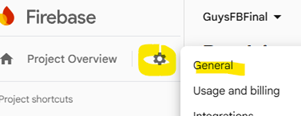
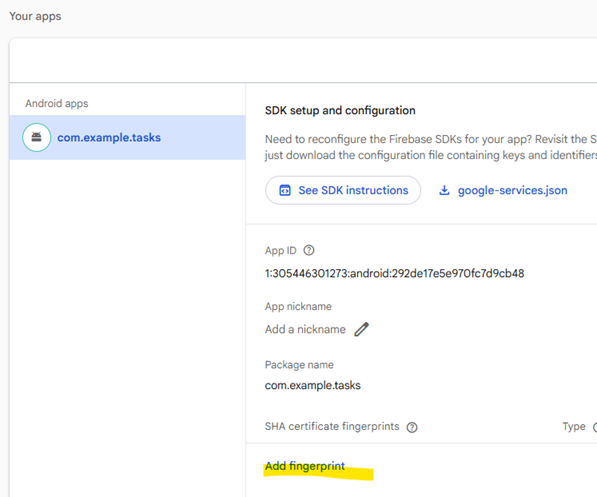
Notes:
- Unlike the image shows, you should also have an app called com.example.tictacmenu (or whatever your app package name is). it is perfectly possible to have several apps added as part of the config.
- A single app item, named after a package name, may have multiple SHA1 fingerprints associated with it (if several students try sharing the same firebase for the multiplayer experience)
Clarification:
- This is configured inside Firebase project settings.
- It is tied to the specific Android app identity (
package + SHA) under that project.
Variant B (Teacher / shared backend): I use a teacher or another student's Firebase project
Do these before you start coding Google login:
- Consider renaming your project to match the name of the group’s project. Instructions for this are at 191.
- Alternatively, make sure your app package is registered as an Android app in the teacher / (the group)Firebase project. Send the other student, you package name (something like
com.example.yourprojname) (if needed, use the package-mismatch fix from018bStep3.1/3.2) - Ensure SHA1 is handled for the signing cert used on your machine:
- either the teacher’s shared debug keystore fingerprint is already registered, or
- your machine’s debug SHA1 is added in Firebase
- Download the updated
google-services.jsonfor your package - Replace
app/google-services.json - Sync Gradle
google-services.json must match your app package, and Google Sign-In runtime still needs the correct SHA1.
Using a physical device does not remove the SHA1 requirement by itself.
Teacher/shared-keystore option (recommended classroom path for Google Sign-In)
This is the lowest-friction setup when many students need Google Sign-In on the same Firebase project.
Important clarification:
- You do not add the keystore file to RTDB.
- You add the keystore fingerprint (
SHA1, preferably alsoSHA-256) to the Firebase project settings for the Android app. - Students copy the shared debug keystore file onto their machine so they all sign debug builds with the same certificate.
Teacher flow (one-time setup)
- Generate a class debug keystore on the teacher machine (or choose an existing one).
- Extract the SHA1 (and optionally SHA-256) from that keystore.
- Add the fingerprint(s) in Firebase Console -> Project settings -> Android app.
- Share the keystore file with students through an internal classroom channel (USB / LMS / shared drive).
- Keep this keystore for the whole course phase so the fingerprint stays stable.
This shared keystore is for debug/classroom use only. Do not use it for release signing.
Teacher command: generate a class debug keystore (run once)
"C:\Program Files\Android\Android Studio\jbr\bin\keytool.exe" -genkeypair -v -keystore "C:\Classroom\class-debug.keystore" -storepass android -alias androiddebugkey -keypass android -keyalg RSA -keysize 2048 -validity 10000 -dname "CN=Android Debug,O=Android,C=US"
Then print fingerprints:
"C:\Program Files\Android\Android Studio\jbr\bin\keytool.exe" -list -v -keystore "C:\Classroom\class-debug.keystore" -alias androiddebugkey -storepass android -keypass android
Add the displayed SHA1 (and preferably SHA-256) to Firebase.
Student flow (install the teacher debug keystore locally)
- Close Android Studio (recommended).
- Back up the student’s current debug keystore.
- Copy the teacher-provided keystore into
%USERPROFILE%\\.android\\debug.keystore. - Rebuild and run the app.
PowerShell example (student machine):
$targetDir = "$env:USERPROFILE\.android"
New-Item -ItemType Directory -Force $targetDir | Out-Null

if (Test-Path "$targetDir\debug.keystore") {
    Copy-Item "$targetDir\debug.keystore" "$targetDir\debug.keystore.backup" -Force
}

Copy-Item "E:\Temp\FromTeacher\debug.keystore" "$targetDir\debug.keystore" -Force
Verification (student machine):
"C:\Program Files\Android\Android Studio\jbr\bin\keytool.exe" -list -v -keystore "$env:USERPROFILE\.android\debug.keystore" -alias androiddebugkey -storepass android -keypass android
The student’s printed SHA1 should match the fingerprint registered in the Firebase project.
Deep Freeze / lab machine note (important)
If classroom machines use Deep Freeze (or similar restore-on-reboot software), this setup may be lost after restart.
Why:
- The default debug keystore path is under the user profile:
%USERPROFILE%\\.android\\debug.keystore - If that profile location is on a frozen drive (usually
C:), Deep Freeze can revert it at reboot
What survives vs what resets:
- Firebase Console SHA entries: survive (cloud-side)
- Local copied
debug.keystore: may be reverted/lost (machine-side)
Practical classroom options:
- Thaw / unfreeze machines before installing the shared debug keystore (best if policy allows)
- Keep the shared keystore on an unfrozen drive or network share and re-copy it at the start of each lesson
- Use a project-specific debug signing config that points to an unfrozen path (advanced setup; can be taught later)
If these three items are correct (Google provider + SHA1 + matching updated google-services.json), the later code steps usually work with much less debugging.
Why this step comes before coding (practical note)
If this setup is missing, students can write the code correctly and still hit:
- missing
default_web_client_id - Google Sign-In failure code
10/Developer_Error - package mismatch errors from the wrong
google-services.json
You can still code first (Part A), but this pre-step is the fastest path to a successful demo.
Refreshing google-services.json matters here because the Google Sign-In flow needs default_web_client_id, which is generated from this file.
Step 2 - Add Google Sign-In dependency
Continue using the version catalog introduced in 018c.
First, edit gradle/libs.versions.toml and add the Google Sign-In version under
[versions]:
 [versions]
 firebaseBom = "34.16.0"
+playServicesAuth = "21.4.0"
Then add the library under [libraries]:
 [libraries]
 firebase-database = { group = "com.google.firebase", name = "firebase-database" }
+play-services-auth = { group = "com.google.android.gms", name = "play-services-auth", version.ref = "playServicesAuth" }
The catalog key play-services-auth becomes the Gradle accessor
libs.play.services.auth.
Now edit app/build.gradle.kts and add the dependency:
 dependencies {
     implementation(platform(libs.firebase.bom))
     implementation(libs.firebase.auth)
     implementation(libs.firebase.database)
+    implementation(libs.play.services.auth)

     ...
 }
Sync Gradle.
Step 3 - Extend FBRef (under services) for Google Sign-In client
Edit:
app/src/main/java/com/example/tictacmenu/services/FBRef.java
Add imports:
+import android.content.Context;
+import android.util.Log;
+
+import com.example.tictacmenu.R;
+import com.google.android.gms.auth.api.signin.GoogleSignIn;
+import com.google.android.gms.auth.api.signin.GoogleSignInClient;
+import com.google.android.gms.auth.api.signin.GoogleSignInOptions;
Add a Google client field:
 public final class FBRef {

     public static final FirebaseAuth refAuth = FirebaseAuth.getInstance();
     public static final FirebaseDatabase FBDB = FirebaseDatabase.getInstance();
     public static final DatabaseReference refUsers = FBDB.getReference("Users");
+
+    public static GoogleSignInClient googleSignInClient;
Add initialization + Google sign-out helper methods:
public static void initializeGoogleSignIn(Context context) {
    try {
        String webClientId = context.getString(R.string.default_web_client_id);

        GoogleSignInOptions gso = new GoogleSignInOptions.Builder(GoogleSignInOptions.DEFAULT_SIGN_IN)
                .requestIdToken(webClientId)
                .requestEmail()
                .build();

        googleSignInClient = GoogleSignIn.getClient(context, gso);
    } catch (Exception e) {
        Log.e("FBRef", "Failed to initialize Google Sign-In client", e);
        googleSignInClient = null;
    }
}

public static void signOutGoogle() {
    if (googleSignInClient != null) {
        googleSignInClient.signOut();
    }
}
If default_web_client_id is missing, this usually means the google-services.json is outdated or from the wrong Firebase app package.
Step 4 - Wire Google login in LoginActivity
Edit:
app/src/main/java/com/example/tictacmenu/activities/LoginActivity.java
4.1 Add imports
 import android.content.Intent;
 import android.content.SharedPreferences;
 import android.os.Bundle;
 import android.text.TextUtils;
 import android.view.View;
 import android.widget.Button;
 import android.widget.CheckBox;
 import android.widget.EditText;
 import android.widget.Toast;

 import androidx.activity.EdgeToEdge;
 import androidx.appcompat.app.AppCompatActivity;
 ...

 import com.example.tictacmenu.services.FBRef;
 import com.example.tictacmenu.R;
 import com.example.tictacmenu.shell.MenuActivity;
+import com.google.android.gms.auth.api.signin.GoogleSignIn;
+import com.google.android.gms.auth.api.signin.GoogleSignInAccount;
+import com.google.android.gms.common.api.ApiException;
+import com.google.android.gms.tasks.Task;
+import com.google.firebase.auth.AuthCredential;
 import com.google.firebase.auth.FirebaseUser;
+import com.google.firebase.auth.GoogleAuthProvider;
4.2 Add fields
NOTE: if your project was updated to use bindings - you will not see many of the below elements (Buttons and EditTexts fields declared)
 public class LoginActivity extends AppCompatActivity {

+    private static final int RC_GOOGLE_SIGN_IN = 9001;
     private static final String PREFS_NAME = "PREFS_NAME";
     private static final String KEY_STAY_CONNECT = "stayConnect";

     private SharedPreferences settings;
     private CheckBox cBstayconnect; //not required if you use bindinging
     private EditText eTemail;//not required if you use bindinging
     private EditText eTpass;//not required if you use bindinging
     private Button btnLogin;//not required if you use bindinging
+    private Button btnGoogleSignIn;//not required if you use bindinging
     private boolean loginInProgress;//not required if you use bindinging
4.3 Initialize Google client and button reference
NOTE: if your project was updated to use bindings - you no longer have initViews()
In initViews():
 private void initViews() {
     cBstayconnect = findViewById(R.id.cBstayconnect);
     eTemail = findViewById(R.id.eTemail);
     eTpass = findViewById(R.id.eTpass);
     btnLogin = findViewById(R.id.btn);
+    btnGoogleSignIn = findViewById(R.id.btnGoogleSignIn);
 }
In onCreate(...), after initViews() and before the user can click the button, initialize Google:
 settings = getSharedPreferences(PREFS_NAME, MODE_PRIVATE);
 initViews();
+
+FBRef.initializeGoogleSignIn(this);
4.4 Replace onGoogleLoginClick(...)
Replace the temporary toast with:
public void onGoogleLoginClick(View view) {
    if (loginInProgress) return;

    if (FBRef.googleSignInClient == null) {
        Toast.makeText(this, "Google Sign-In is not configured yet (check google-services.json)", Toast.LENGTH_LONG).show();
        return;
    }

    Intent signInIntent = FBRef.googleSignInClient.getSignInIntent();
    startActivityForResult(signInIntent, RC_GOOGLE_SIGN_IN);
}
4.5 Handle Google sign-in result + Firebase credential login
Add these methods to LoginActivity:
@Override
protected void onActivityResult(int requestCode, int resultCode, Intent data) {
    super.onActivityResult(requestCode, resultCode, data);

    if (requestCode != RC_GOOGLE_SIGN_IN) return;

    if (data == null) {
        Toast.makeText(this, "Google sign-in canceled", Toast.LENGTH_SHORT).show();
        return;
    }

    Task<GoogleSignInAccount> task = GoogleSignIn.getSignedInAccountFromIntent(data);
    handleGoogleSignInResult(task);
}

private void handleGoogleSignInResult(Task<GoogleSignInAccount> task) {
    try {
        GoogleSignInAccount account = task.getResult(ApiException.class);
        if (account == null || account.getIdToken() == null) {
            Toast.makeText(this, "Google sign-in failed: missing ID token", Toast.LENGTH_LONG).show();
            return;
        }

        firebaseAuthWithGoogle(account.getIdToken());
    } catch (ApiException e) {
        Toast.makeText(this, "Google sign-in failed (code " + e.getStatusCode() + ")", Toast.LENGTH_LONG).show();
    }
}

private void firebaseAuthWithGoogle(String idToken) {
    setLoginInProgress(true);

    AuthCredential credential = GoogleAuthProvider.getCredential(idToken, null);
    FBRef.refAuth.signInWithCredential(credential)
            .addOnCompleteListener(this, task -> {
                setLoginInProgress(false);

                if (task.isSuccessful()) {
                    FirebaseUser currentUser = FBRef.refAuth.getCurrentUser();
                    if (currentUser == null) {
                        Toast.makeText(this, "Google login succeeded but no user was returned", Toast.LENGTH_SHORT).show();
                        return;
                    }

                    FBRef.getUser(currentUser);
                    settings.edit().putBoolean(KEY_STAY_CONNECT, cBstayconnect.isChecked()).apply();
                    Toast.makeText(this, "Google login success", Toast.LENGTH_SHORT).show();
                    openMenu();
                    return;
                }

                String errorMessage = task.getException() != null
                        ? task.getException().getLocalizedMessage()
                        : "Google Firebase auth failed";

                Toast.makeText(this, "Google login failed: " + errorMessage, Toast.LENGTH_LONG).show();
            });
}
4.6 (Optional polish) Disable the Google button while login is in progress
If you want the same “busy” behavior for both login buttons, update setLoginInProgress(...):
 private void setLoginInProgress(boolean inProgress) {

        loginInProgress = inProgress;
        btnLogin.setEnabled(!inProgress);
+       btnGoogleSignIn.setEnabled(!inProgress);
        btnLogin.setText(inProgress ? "Logging in..." : "Login");
 }
Keep the email/password login flow intact. 018d is an additive upgrade, not a replacement.
Recommended Git checkpoint (Part A complete - before SHA1 runtime testing):
- Code compiles
- Google provider enabled
- Correct
google-services.jsonin place - Google button launches sign-in attempt (it may still fail with SHA1-related error)
Example commit message:
018d: wire Google sign-in client and Firebase credential login
Step 5 - If you added drawer disconnect in 018c, extend it for Google sign-out too
This avoids a confusing state where Firebase signs out but Google account picker still auto-selects the last account.
In MenuActivity.logoutAndOpenLogin(), add:
 private void logoutAndOpenLogin() {
     SharedPreferences settings = getSharedPreferences("PREFS_NAME", MODE_PRIVATE);
     settings.edit().putBoolean("stayConnect", false).apply();

+    FBRef.signOutGoogle();
     FBRef.refAuth.signOut();

     Intent intent = new Intent(this, LoginActivity.class);
     ...
 }
SHA1 clarification (important)
Question:
Can students skip SHA1 if they test on a physical device instead of an emulator?
Answer (important correction):
- No, not just because it is a physical device.
- For Google Sign-In, Firebase/Google OAuth still checks the signing certificate fingerprint (
SHA1, and preferably alsoSHA-256) of the app build. - This applies to emulator and physical device.
What can be skipped temporarily:
- Students can finish Part A (code wiring) and commit it before SHA1 is configured.
- Some early birds may also pass runtime testing without doing the SHA1 step themselves if the fingerprint is already registered (for example: teacher shared debug keystore, or their machine SHA1 was already added earlier).
Typical failure when SHA1 is missing for Google Sign-In:
Developer_Error/ status code10(or a Google sign-in failure code shown in your toast)
Teaching implication:
- Do not block
018b/018con SHA1. - Introduce SHA1 only when Google Sign-In is added.
- Treat physical-device testing as helpful, but not as a guaranteed SHA1 bypass.
Step 6 - keytool support note (if the SHA command fails)
The SHA1 command is shown inside the relevant Step 1 variant (Variant A for autonomous setup, and verification commands in Variant B teacher/shared flow).
If the command fails because keytool is missing:
keytool is not a built-in Windows 11 command.
- It comes with a Java JDK installation.
- It is also bundled with Android Studio (which is why this lesson uses the Android Studio
jbrpath directly). - If Android Studio is installed, students usually do not need any extra download for this step.
Try:
where keytool- If not found, install one of these and retry:
- Android Studio (includes bundled Java runtime/tools): https://developer.android.com/studio/install
- OpenJDK (Temurin): https://adoptium.net/temurin/releases/
Step 7 - Runtime validation checklist (Google Sign-In)
Before testing, confirm all of these:
- Google provider enabled in Firebase Authentication
google-services.jsonmatches your app packagedefault_web_client_idexists (generated fromgoogle-services.json)play-services-authdependency added- Correct SHA1 registered for the keystore signing this build (unless it was already registered earlier)
Emulator checklist
- Use an emulator image with Google Play support
- Google Play Services is available and updated
Physical device checklist
- Device has a Google account signed in (or can sign in during picker flow)
- The installed build is signed with a cert whose fingerprint is already registered in Firebase (debug or release, depending on what you installed)
Expected success flow:
- Tap
Login with Google - Account picker opens
- Choose account
- App returns to
LoginActivity - Firebase
signInWithCredential(...)succeeds - App opens
MenuActivity
Recommended Git checkpoint (after first successful Google login):
- Commit (and push) after you verify Google login success and the disconnect/logout flow still returns to
LoginActivity.
Example commit message:
018d: add Google sign-in (OAuth) with Firebase credential login
Troubleshooting
default_web_client_id cannot be resolved
Usually means one of these:
google-services.jsonis missinggoogle-services.jsonis from the wrong Firebase Android app package- Google Services plugin is not applied
- You enabled Google provider but did not re-download
google-services.json
Google sign-in fails with code 10 / Developer_Error
Most common cause:
- Missing SHA1 for the certificate that signed this build
This can happen on:
- emulator
- physical device
Fix:
- Print the SHA1 of the keystore used for the build
- Add it in Firebase Project settings -> Android app -> SHA fingerprints
- Rebuild and rerun
No matching client found for package name ...
This is the package mismatch issue (copied google-services.json from another app package).
Use the fix in:
018bStep3.1/3.2
Google button opens then returns without login
Possible causes:
- User canceled account picker (not a bug)
- Google Play Services issue on emulator
- Google provider disabled in Firebase Auth
- SHA1 mismatch / missing (often code
10)
Out of scope for this page (can stay in later code lesson if needed)
- Full production-ready account linking flows (Email/Password <-> Google)
- One Tap / Credential Manager migration
- Security rules design
Optional design detour: To give TicTacMenu the blue/orange palette, blue drawer toolbar, and clear square game cells, follow the small theming-alignment tutorial. It changes presentation only and is not required for Google OAuth, SHA1 setup, or any 018d checkpoint.
Continue
מורה־עזר ב־Gemini
פתחו את Gem: מאמן Firebase ל־TicTacToe כדי לקבל רמזים, שאלות אבחון והסברים המתאימים לשלב שבו אתם נמצאים.