Back to the app tutorial · עברית
Use a dedicated classroom Firebase project that you control. The screenshots were taken from an existing instructor project on 24 October 2026, before AI Logic/App Check activation. They are cropped to exclude account identity, project identifiers, billing data and credentials. They illustrate where to go, not a claim that the example project is protected. No project settings were changed to make these pictures.
1. Register the Android app and select the provider
- In the Firebase console, select your own project. Open Project settings > General > Your apps > Add app > Android and register the exact
applicationIdfrom your module Gradle file. Our example iscom.example.topic. - Download that Android app’s google-services.json into the app module root, next to its Gradle file. Do not paste its contents into the tutorial or Java code. It identifies the Firebase app; it is not a service-account credential.
- Open AI services > AI Logic > Get started. Select Gemini Developer API and follow the guided activation. For this example choose the supported text model
gemini-3.8-flash(check the current model list). Review the console’s provider and billing prompts yourself before confirming.
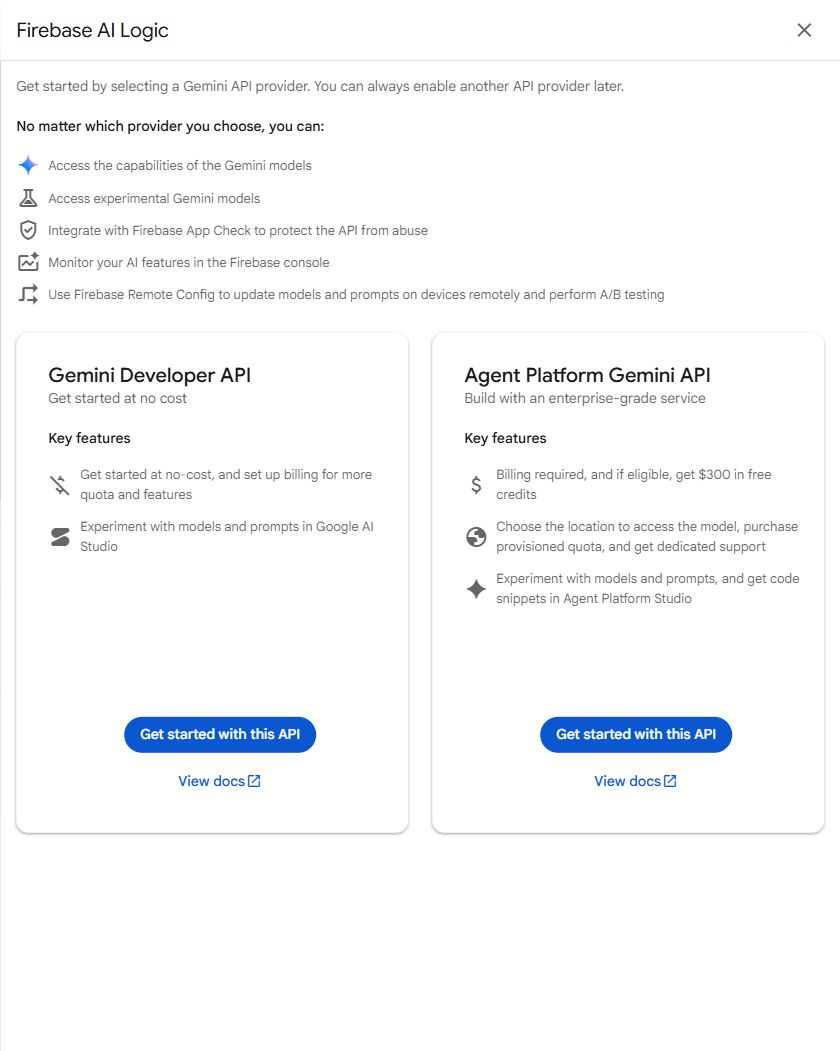
For a no-payment classroom project, check the Spark plan and the provider’s free-tier availability. An existing Blaze project can incur usage charges: choosing the Developer API does not turn Blaze back into Spark. Do not change the plan of a shared project to follow this exercise.
2. Verify the APIs; keep the two key types distinct
In the Google Cloud console, select the same project, then open APIs & Services. Guided setup should enable the required services; use Library to verify Firebase AI Logic API, service name firebasevertexai.googleapis.com, and the chosen provider’s Gemini API (generativelanguage.googleapis.com). Seeing Enable means that service is not yet enabled in the selected project. Use the Firebase setup flow to complete activation.
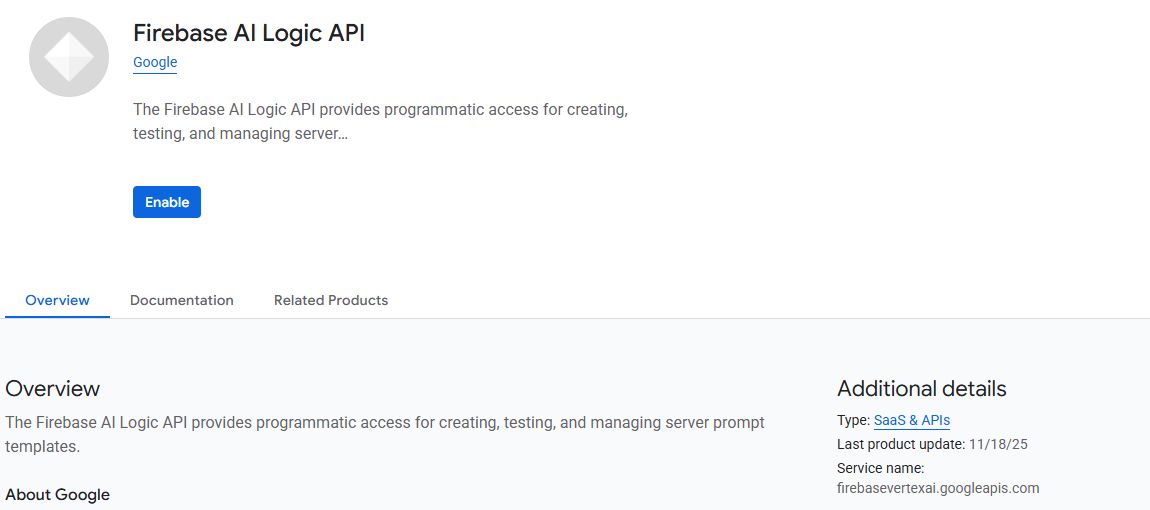
The Gemini provider key created by the Firebase workflow stays on the backend: never put a Gemini API key or service-account JSON in your app. The Firebase API key in google-services.json is a project/app identifier, not proof that a request is authorized. In APIs & Services > Credentials, restrict the Firebase key used by this app to Android apps (its package name and SHA-1 signing fingerprint) and allow only the Firebase APIs the app needs, including Firebase AI Logic API. Obtain the SHA-1 for the classroom installation with the Gradle signingReport task. If students build on different computers, add each computer’s debug-signing SHA-1 to the allowed Android applications. Avoid changing a shared key used by other apps. Key restrictions and App Check.
3. Protect the request with App Check
Open Security > App Check > Get started. Select your registered Android app. This tutorial uses one classroom setup, with the App Check debug provider on the emulator or test device. Each installation registers a private token; Firebase accepts that token instead of asking for device attestation. It does not sign a user in. Current guided AI Logic setup automatically enforces App Check; older projects must check App Check > APIs > Firebase AI Logic and enforce it explicitly. Do not bypass a failed test by disabling enforcement. Official App Check steps.
As of this page’s check date, Google states that App Check enforcement becomes required for AI Logic on 2 November 2026. Prepare it now rather than making an unprotected first version. Security checklist.
Add the SDKs
In Gradle Scripts > build.gradle.kts (Project), add the Google services plugin alongside the existing Android plugin:
// Top-level build file where you can add configuration options common to all sub-projects/modules.
 plugins {
     alias(libs.plugins.android.application) apply false
+    id("com.google.gms.google-services") version "4.5.0" apply false
 }
In Gradle Scripts > build.gradle.kts (Module :app), apply the plugin and add the dependencies below; keep all template dependencies. Then Sync. Guava supplies the Java future/callback API. This example does not stream responses, so it does not add a streaming-specific library.
plugins {
     alias(libs.plugins.android.application)
+    id("com.google.gms.google-services")
 }

 android {
 }

 dependencies {
+    implementation(platform("com.google.firebase:firebase-bom:35.1.0"))
+    implementation("com.google.firebase:firebase-ai")
+    implementation("com.google.guava:guava:31.0.1-android")
+    implementation("com.google.firebase:firebase-appcheck-debug")
     implementation(libs.activity.ktx)
     implementation(libs.appcompat)
     implementation(libs.constraintlayout)
In app > manifests > AndroidManifest.xml, add this above <application>:
<uses-permission android:name="android.permission.INTERNET" />
Register the classroom installation
The app tutorial installs the debug provider directly in MainActivity, before creating the AI model. There are no extra helper classes, build-variant folders, or Play Console steps.
- Continue with the app tutorial, run the app and press Ask LLM once.
- In Logcat, filter for DebugAppCheckProvider and copy the generated debug token privately.
- In Firebase > Security > App Check > Apps, open your app’s overflow menu, choose Manage debug tokens, and register that token.
- Press Ask LLM again. The first request may fail until the token is registered.
Each student’s installation gets its own token. Keep the token and the installed tutorial app private; revoke the token after the exercise. Anyone holding an allowed token can use it from an unverified device. This setup is for classroom testing. Android debug-provider guide.
4. Set limits and check readiness
Choose deliberately small classroom rate limits in AI Logic and review provider quotas in Cloud. If billing is enabled, set budget alerts and review available spend controls: a budget alert is a notification, not a hard spending cap. The disabled button in our app prevents accidental repeat clicks; it is not a server-side usage limit. Quotas, budget alerts.
Before the first request, check: matching project/app/config; required APIs enabled; correct App Check provider and private token registered; Firebase key restrictions match the app; appropriate quota/billing settings. Firebase Authentication and its authenticated-users mode can be added when the app needs individual users; they are not enabled by this tiny example. Leave template-only mode off for this direct-prompt lesson, since that mode rejects direct prompts. Production/security options.
If a request fails, read the label and Logcat: an App Check rejection calls for checking attestation/token registration, API_KEY_SERVICE_BLOCKED calls for checking the key’s API allowlist, 404 may mean a retired/misspelled model, and 429 means a quota/rate limit. Do not solve these by publishing keys or repeatedly retrying.